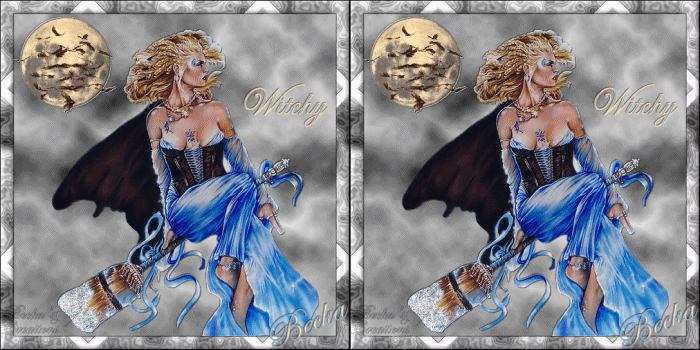
Witchy - Mild-AC


Notes:
This tut was done in PSP 10 but should work as well in other versions.
Some knowledge of, and experience with, PSP is required.
A trial version of PSP can be downloaded from here.
You are welcome to use my images, or use your own
If any filters are used, please note that if you don't already have them installed that you will have to close PSP, Install, then start PSP again.

Intermediate
 
Supplies:
Abraxsis~JourneyOfTwilightsMoon~Sky
HH-3 Belle-Graphics
Filters Unlimited
Gittes Plugins
Xero
Animation Shop

Preparation:
Open a 500 x 500 Image, flood filled with white
 
Pick 2 colors from any of the images

Step 1:
Effects/Plugins/Filters Unlimited/Render/Difference Clouds

Image/Add Borders/1 px/Black
Image/Add Borders/20 px/White
Highlight this border
Effects/Plugins/Gittes Plugin/Gittes Diamondsless/Default
Effects/Plugins/Xero/Titanium/Default
Effects/3D Effects/Inner Bevel

Selections/Select None
Image/Add Borders/1 px/Black

Step 2:
Take the moon image
Edit/Copy
Edit/Paste as a new layer
Image/Re-Size to 30 or what looks good to you
Move to the upper left corner
Layers/New Raster Layer
Selections/Select All
Selections/Float
Selections De-float
Highlight the top Layer - the blank raster layer
Effects/3D Effects/Drop Shadow
 
Effects/3D Effects/Drop Shadow
Selections/Select None
Close the moon layer
Highlight the drop shadow layer
Use your magic wand and select the Drop Shadow
This is what you should have:

Adjust/Add-Remove Noise/Add Noise

Selections/Select None
Highlight the moon Layer
Effects/3D Effects/Drop Shadow/Same as above
Effects/3D Effects/Inner Bevel/Same as before
Highlight the top layer again
Effects/3D Effects/Drop Shadow

Step 3:
Take the witch
Edit/Copy
Edit/Paste as a New Layer
Image Re-Size to 80 or what looks good to you
Move to the middle
Effects/3D Effects/Drop Shadow


Step 4:
Add Name
Add Caption
Effects/3D Effects/Drop Shadow

Layers/New Raster Layer
Add Watermark


Step 4:
Highlight the witch layer
Layers/Duplicate
Take your Freehand tool
Select around the 'White' on the broom
Close one of the witch layers
Highlight the other one
Adjust/Add-Remove Noise/Add Noise

Close off this layer
Open the other witch layer
Highlight this layer
Adjust/Add-Remove Noise/Add Noise

Close both Witch layers
Layers/Merge/Merge all layers except - the background, 2 witch layers, and the layer(s) that the Name and caption are on.


Open Animation Shop

Step 5:
In PSP
Make sure that the backgroud layer is on the bottom
Open 1 of the witch layer
Highlight
Close the other witch layer
Edit/Copy Merged
Animation
Edit/Paste as a New Animation
PSP
Close that layer of the witch
Open the other witch layer
Highlight this witch layer 
Edit/Copy Merged
Animation
Edit/Paste/Paste After Current Frame
View/Animation
Close after seeing the animation
Animation/Re-Size Animation to 350 or what looks good to you

©CreateWithBecka
2009-2011

7-24-10


Witchy  - Halloween Supplies.zip Witchy - Halloween Supplies.zip
Size : 831.683 Kb
Type : zip
Make a Free Website with Yola.