Watermarks


Notes:
This tut was done in PSP 10 but should work as well in other versions.
Some knowledge of, and experience with, PSP is required.
A trial version of PSP can be downloaded from here.
You are welcome to use my images, or use your own
If any filters are used, please note that if you don't already have them installed that you will have to close PSP, Install, then start PSP again.

Supplies
PSP
400 x 400 transparent Image

This can be done 2 ways, using Emboss and just using the Drop Shadow.

First we are going to do the emboss:

Step 1:
Type in what you would like for your watermark.  Can be just a name or a name and an image, the image has to be on a

transparent layer
Layers/New Raster Layer

Step 2:
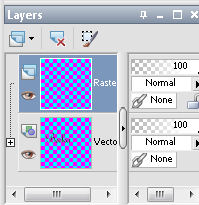
Make sure that your blank image is on the bottom (layer you just made)

Layers/Merge/Merge Visible
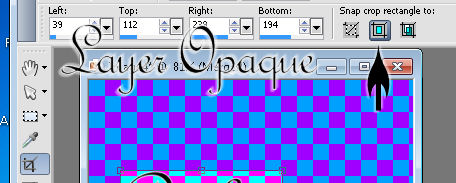
Click on the Crop Tool
Click on Layer Opaque

Effects/Textures/Emboss

Lower the opacity to get the desired look


Now you can use any any effects that you would like to choose.  Just remember that you have to add a layer for it to

work.

Dodge: 

Soft Light: 

You can add an image to use as a watermark along with your name or just an image, name

Drop Shadow:
Type What your would like it to say
Lower the opacity to the desired lightness

Another way to do this is:
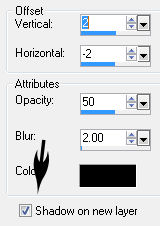
Use these settings

Type your name, and or image or both  - doesn't matter what color the text is
Effects/3D Effects/Drop Shadow - make sure that you have Drop Shadows on a separate layer
  

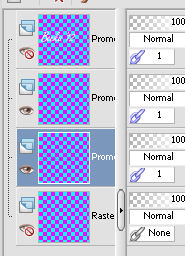
Close all layers except the ones showing the Drop Shadow

Selections None

Now I know that this is light, but just change the Drop Shadow settings to your liking


Step 3:
Now before we finish, to make this into a watermark, you follow these instructions
File/Export/Picture Tube - you will get this popup
Name the watermark

Can even be used as a background even - be differnet but neat. 



Watermark Supplies.zip Watermark Supplies.zip
Size : 187.138 Kb
Type : zip
Make a Free Website with Yola.