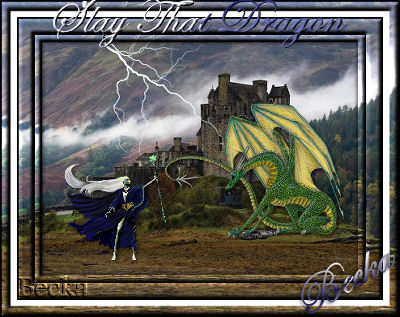
 Notes: If any filters are used, please note that if you don't already have them installed that you will have to close PSP, Install, then start PSP again. Advanced 2 Supplies: WorthLivingFor-pchz Alien Skin Xenofex2 Preparation: Take your Castle
Step 1: Take your dragon and wizard and place where it looks good to you
Step 2:
Layers/New Raster/Layer
Effects/Plugins/Alien Skin Xenofex2/Lightning
Move the circle/plus icon to where you want the lightning to come down at
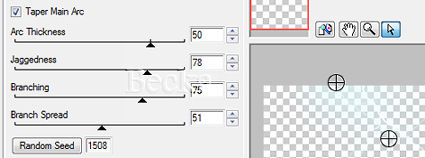 Glow Tab:
Flash Size: 70
Glow Width: 10
Glow Opacity: 0
Repeat 2x
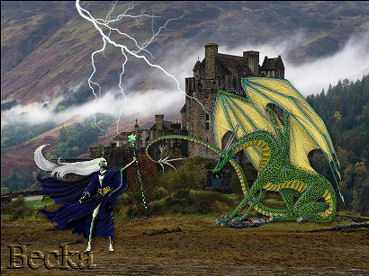 Layers/Merge/Merge Visible Selections/All Selections/Modify/Contract/10 px Selections/Invert Effects/3D Effects/Inner Bevel 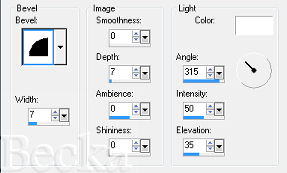 Effects/3D Effects/Drop Shadow
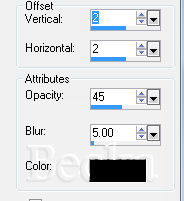 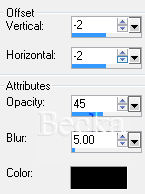 Edit/Copy
Selections/Select None Edit/Paste as a New Image - This will be your frame Image/Add Borders/1 px/Black Step 3:
Image/Add Borders/20 px/White Highlight your border Take your duplicated Castle image Edit/Copy
Edit/Paste Into Selection Effects/3D Effects/Inner Bevel - Same as before Selections/Select None Image/Add Borders/1 px/Black Image/Add Borders/20 px/White Highlight your border Go to your frame, Edit/Copy Edit/Paste Into Selection Selections/Select None Image/Add Borders/1 px/Black 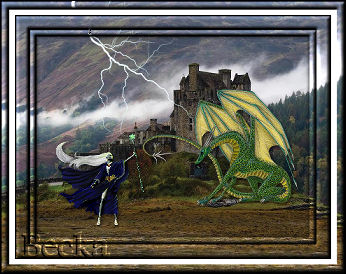 Layers/New Raster Layer
Add Watermark Layers/New Raster Layer Add your Name Add a Caption
Resize to 400 on the longest side
Layers/Merge/Merge Visible 4-10-10
|
|



Make a Free Website with Yola.
