Notes: This tut was done in PSP 10 but should work as well in other versions. Some knowledge of, and experience with, PSP is required. You are welcome to use my images, or use your own If any filters are used, please note that if you don't already have them installed that you will have to close PSP, Install, then start PSP again. Supplies: JP_Avisse03_mc Narah_Abstract001 Filters Unlimited Simple Deko03 Preparation: 500 x 500 Transparent image Edit/Copy your images Edit/Paste as new Images Pick 2 colors from your image (I chose #6970a4 and #3c5269) Step 1: Flood fill with your dark color Layers/New Raster Layer Flood fill with your light color Layers/Load-Save Mask/Load Mask from Disk 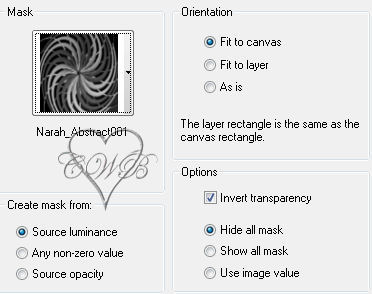 Effects/Plugins/Filters Unlimited 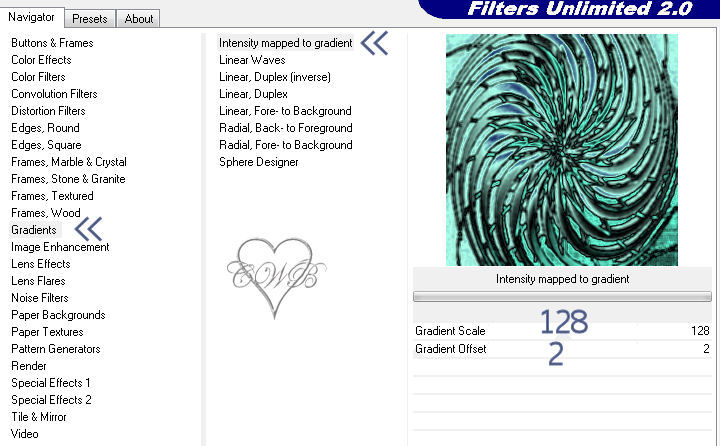 Effects/Plugins/Filters Unlimited 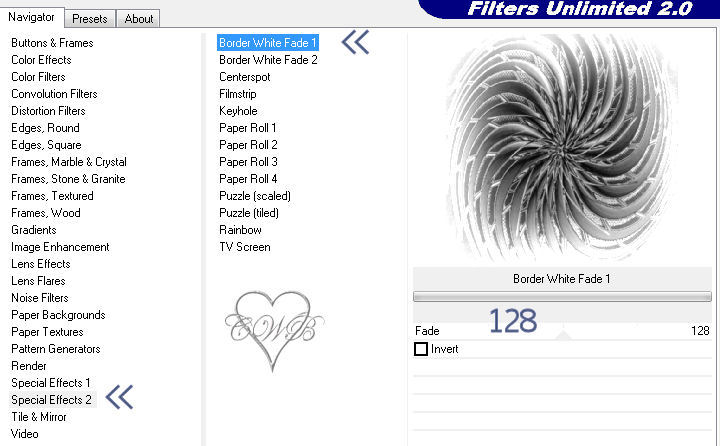 Layers/Merge/Merge Group Step 2: Take the woman image Edit/Copy Edit/Paste As A New Layer onto your working image Move the image to the left side Make sure that the woman layer is selected Effects/3D Effects/Inner Bevel 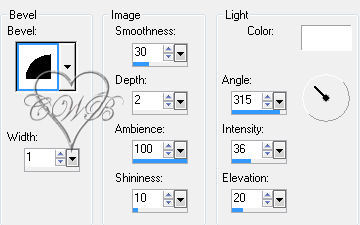 Effects/3D Effects/Drop Shadow  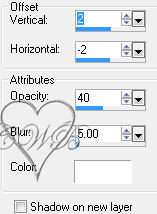 Step 3: View/Zoom In -- Keep doing this until you get to 350-400 Click on your pen tool Start underneath the eye and make some lines to help it to like like a tear - (I used #554e48), go as long as you like with the tear Click on the lighten/Darken brush - 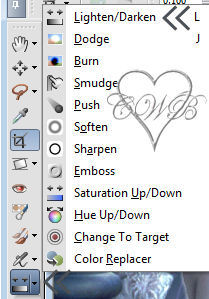 Go over the mark that you made using your pen tool, until its the way that you like it View/Zoom out - until you don't have the sliding bar anymore, or to your desired size Effects/3D Effects/Drop Shadow  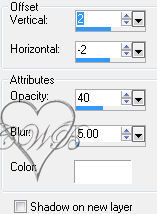 Layers/Merge/Merge Visible Step 4: Image/Add Borders/1 px/Dark Color Image/Add Borders/5px/Light Color Image/Add Borders/5 px/Dark Color Zoom in on the first dark color and highlight it Effects/3D Effects/Inner Bevel 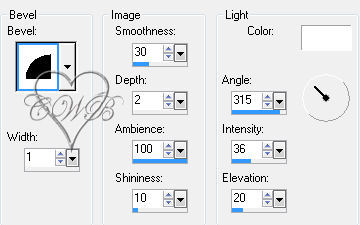 Effects/3D Effects/Drop Shadow  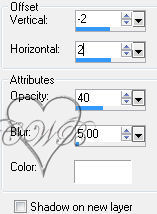 Step 5: Selections/Select All Selections/Modify/Contract/14 px Edit/Copy Selections/None Image/Add Borders/5 px/Light Color Highlight both borders Effects/3D Effects/Inner Bevel 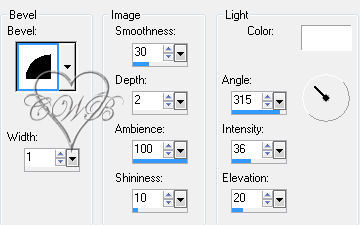 Selections/Select None Step 6: Image/Add Borders/1 px/Dark Color Image/Add Borders/20 px/White Edit/Paste Into Selection Effects/Plugins/Simple/4 Way Average Selections/Select None Image/Add Borders/1 px/Dark Color Image/Add Borders/20 px/White Highlight this border Edit/Paste Into Selection Effects/3D Effects/Inner Bevel 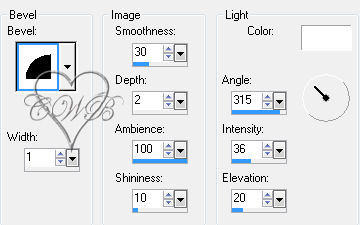 Repeat Inner Bevel Effects/3D Effects/Drop Shadow  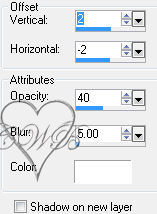 Selections/Select None Image/Add Borders/1 px/Dark Color Step 7: Take the corner Edit/Copy Edit/Paste As A New Layer Image/Re-Size 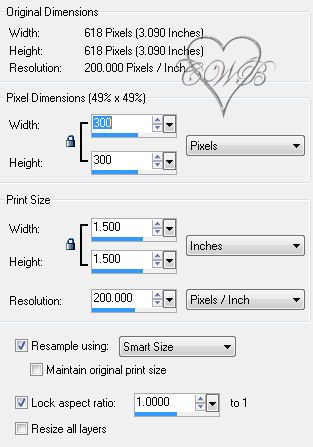 Move to the upper left corner Effects/3D Effects/Drop Shadow  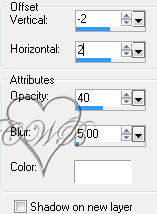 Effects/Plugins/Simple/Top Left Corner Layers/Merge/Merge Visible Step 8: Layers/New Raster Layer Add Name Effects/3D Effects/Drop Shadow 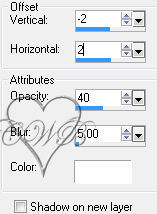 Layers/New Raster Layer Add Watermark Layers/New Raster Layer -- Optional Add a Caption -- Optional Effects/3D Effects/Drop Shadow 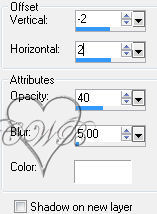 Layers/Merge/Merge Visible Re-Size to 500 on the longest side - if needed ®©CreateWithBecka 8-28-11
|
|


Make a Free Website with Yola.
