 Notes: Beginner Supplies: JB_blueangel Preparation: 400 x 400 transparent image
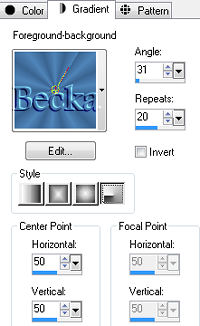
If you want to have a gradient for your caption, then pick 2 more colors for that (use same setting as the first gradient). Or can use a solid color Step 1: Flood fill your transparent image with your gradient
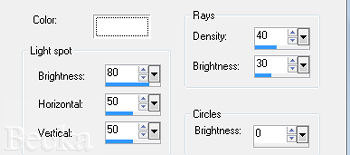
Effects/Illumination Effects/Sunburst
Edit/Copy your tube
Edit/Paste as a new Layer onto your main image Using either your 2nd gradient or a solid color Add a Caption
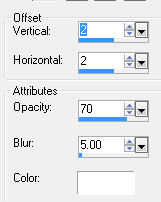
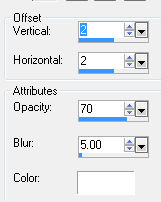
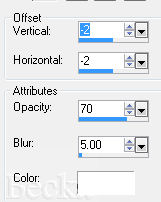
Effects/3 Effects/Drop Shadow
Use White or Black for the color - your choice
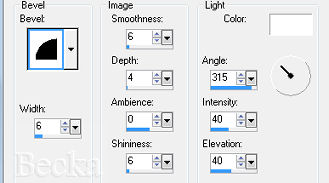
Effects/3D Effects/Inner Bevel
Layers/Merge/Merge Visible Step 2: Image/Add Borders/1 px/Black
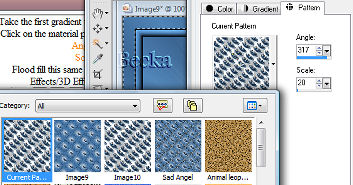
Image/Add Borders/10 px/White Highlight this border Using your original gradient Flood fill with your gradient Effects/3D Effects/Inner Bevel/same as before Selections/Selections None Image/Add Borders/1 px/Black Image/Add Borders/20 px/White Highlight this border Take the first gradient that you made and flood fill Click on the material palette, and click on Pattern Angle: 317 Scale: 20
Flood fill this same border with this pattern
Effects/3D Effects/Drop Shadow
Selections/Selections None
Image/Add Borders/1 px/Black Image/Add Borders/10 px/White Highlight this border Flood fill with your gradient Effects/3D Effects/Inner Bevel/same as before Selections/Selections None Image/Add Borders/1 px/Black Image/Resize to 75% Layers/New Raster Layer Add watermark Add Name Layers/Merge/Merge Visible Voila!! ©CreateWithBecka
|
|



Make a Free Website with Yola.
