Notes: Intermediate Supplies: 31032
Image2The_Visitor_LR Butterflies -- if not in your picture tube folder already Animation
Preparation:
Take the 31032 image
Edit/Copy Edit/Paste as a New Image Resize to 50% (400 x 300) Close the original Crop off the white around the pic 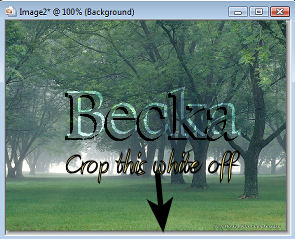
Take the Girl
Edit/Copy Edit/Paste as a new image Resize to 40% (345 x 100) Close the original
Step 1: Layers/Promote Background Layer
Layers/New Raster Layer Select a butterfly from your Picture Tubes Scale them down to: 10 Place however many you want on your picture.
Step 2: Layers/New Raster Layer
Selections/Select All Selections/Modify/Contract/10 px Effects/3D Effects/Drop Shadow  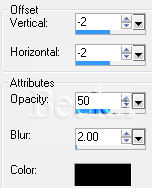
Selections/Invert
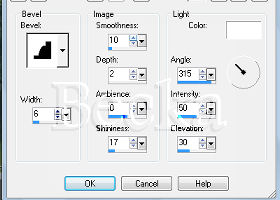
Highlight your Raster 1 layer Effects/3D Effects/Inner Bevel
Selections/Select None
Step 3: Image/Add Borders/1 px/Black
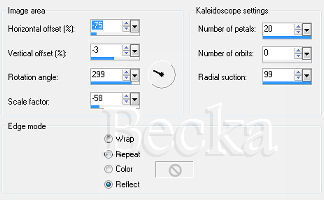
Selections/Select All Edit Copy Selections/Select None Image/Add Borders/10 px/White Highlight this border Edit/Paste Into Selection Selections/Select All Selections/Modify/Contract/21 px Effects/3D Effects/Inner Bevel/Same as before Selections/Invert Edit/Copy Edit/Paste as a New Image - This is your frame Selections/Select None Image/Add Borders/White/20 px Highlight this border Effects/Reflection Effects/Kaleidoscope
Step 4: Selections/Select All
Selections/Modify/Contract/21 px Effects/3D Effects/Inner Bevel/same settings as before. Take your frame Edit/Copy Go back to your working image Selections/Select None Image/Add Borders/1 px/Black Image/Add Borders/20 px/White Selections/Select All Selections/Modify/Contract/20px Selections/Invert Edit/Paste Into Selection Effects/3D Effects/Drop Shadow/Both Selections/Select None Step 5: Layers/New Raster Layer
Add your Watermark Add your name Add a caption Effects/3D Effects/Drop Shadow/To Name and Caption
Layers/Merge/Merge Visible
Step 6: Take your purple lady
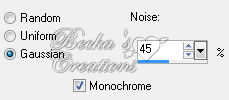
Edit/Copy Edit/Paste as a new layer onto your background Select the purple dress with your magic wand Layers/Duplicate Adjust/Add - Remove Noise/Add Noise -- Close off Raster 1
Highlight the Copy of Raster 1
Close off the merged layer Adjust/Add - Remove Noise/Add Noise  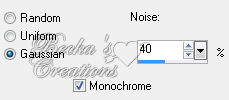 Selections/Select None
Animation Highlight your top layer
Close off your middle layer Edit/Copy Merged Go to Animation and Paste as a new Animation Go back to PSP Highlight your middle layer Close off your top layer Edit/Copy Merged Go to Animation Edit/Paste/After Current Frame View/Animation Save Voila!
6-23-09   |
|





Make a Free Website with Yola.
