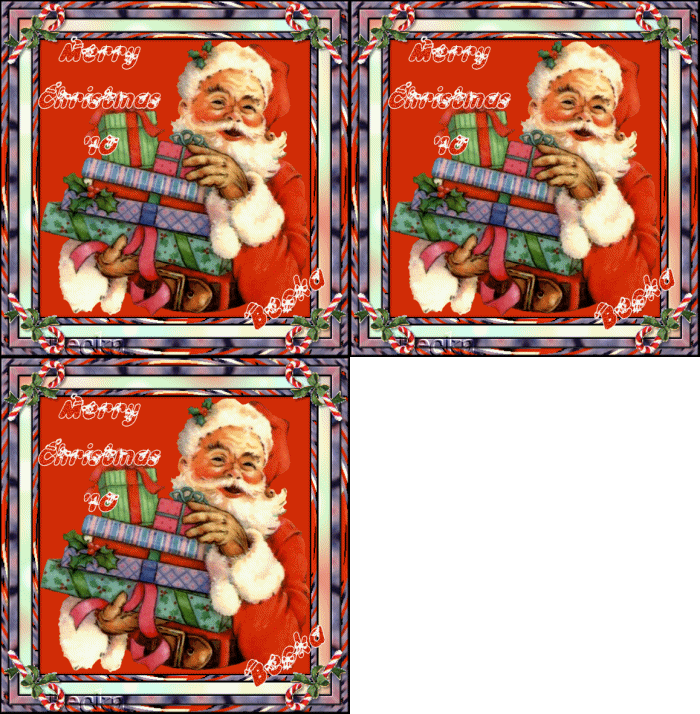
 Notes: Advanced Supplies: SantawithGifts_vsc x12 KR -Kringle I-Decay
ULead Effects Simple Animation Shop Preparation: Open your tube Step 1: Take you tube - SantaWithGifts_vsc
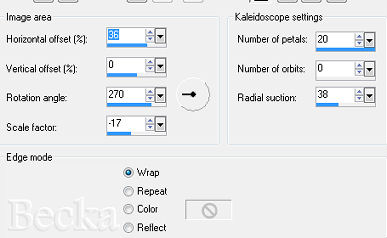
Deselect Step 2: Edit/Copy your kaleidoscope image
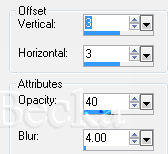
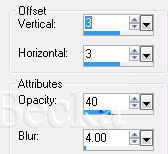
Effects/3D Effects/Drop Shadow
Deselect
Step 3: Image/Add Borders/2px/Black
Lower the opacity of this layer to 50
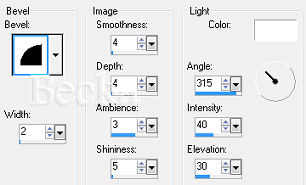
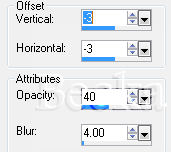
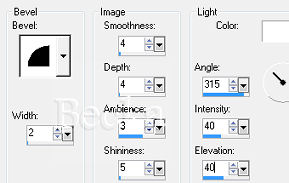
Effects/3D Effects/Drop Shadow - Use both Effects/3D Effects/Inner Bevel
Deselect Step 4: Image/Add Borders/2 px/Black
Step 5: Take your candy cane
Edit/Copy Edit/Paste as a new Layer onto your main image Image/Mirror Place this in the upper left hand corner Effects/Simple/Top Left Mirror Effects/3D Effects/Drop Shadow
Color: Black Step 6: Take your font (might show on your list as 'Kringle')
Add a caption
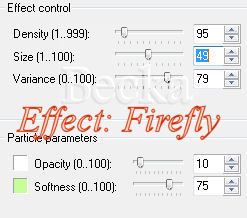
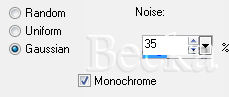
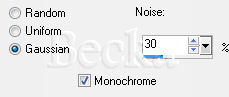
Add your Name Convert to a raster layer Highlight your Raster 2 layer Layers/Merge/Merge Down Highlight your Raster 3 layer Layers/Merge/Merge Down Close off your bottom layer Selections/All Selections/Float Selections Defloat Go to your layer palette and duplication this layer twice ( you will have 4 layers total) Open your bottom layer back up Activate the top layer Adjust/Add Remove Noise 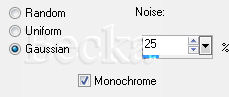 Activate your middle layer
Activate your 3rd layer
Selections/Select None
Layers/View/None Step 7: Open the top and bottom layers make sure that the top layer is activated
Edit/Copy Merged Open Animation Shop and Paste as a new animation Back to PSP Close the top layer and open the middle layer Edit/Copy Merged Go to Animation Shop Edit/Paste/Paste After Current Frame Back to PSP, check the middle layer and uncheck the bottom layer Go to Animation Shop Edit/Paste/Paste After Current Frame Check animation (Right click/View animation) Still in Animation, click Animation/Resize Animation and change the height to 350 pixels
Voila!! ©CreateWithBecka
|
|




Make a Free Website with Yola.
