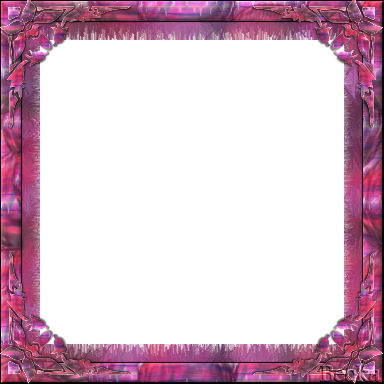
 Notes: Advanced Supplies: 03corn8b Simple Preparation: Open a 300 x 300 transparent image
Open a 200 x 200 transparent image Put your corner onto your workspace, duplicate, close the original Step 1: Open your 300 x 300 transparent image
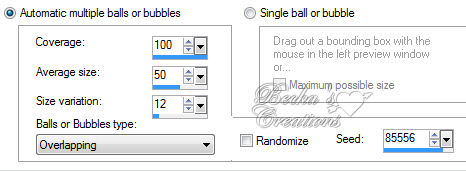
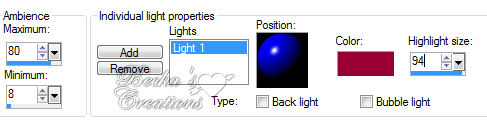
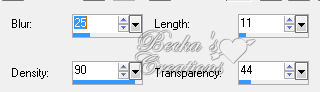
Image/Add Borders/20 px/#610a0f Highlight your border Effects/Artistic Effects/Balls and Bubbles Effects/Texture/Fur: Selections/Select None
Step 2: Image/Add Borders/20 px/White
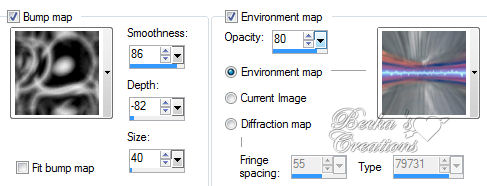
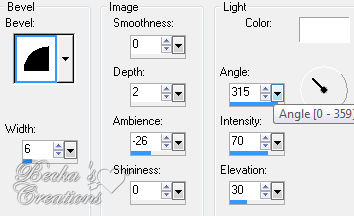
Highlight this border Effects/Artistic Effects/Balls and Bubbles, same settings as before Effects/3D Effects/Inner Bevel Selections/Select None Step 3: Open your 200 x 200 transparent image
Effects/Artistic Effects/Balls and Bubbles - same settings as before Go to your foreground palette and make this into a pattern Angle: 0
Scale: 100 Take your corner Selections/Select All Selections/Float Selections/De-float Activate your flood fill tool Flood fill your corner with your pattern Selections/Select None Go back to your main image Selections/Select None Image/Add Borders/1 px/Black Selections/Select All Selections/Modify/Contract - 40 Delete Selections/Select None Step 4: Take your corner again
Edit/Copy Edit/Paste as a new Layer onto your main image Effects/Plugins/Simple/Top Left Mirror Effects/3D Effects/Drop shadow 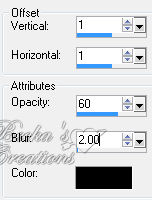 Make sure that your top layer is highlighted Layers/Merge/Merge Down Effects/3D Effects/Inner Bevel - same as before Layers/Merge/Merge Visible Layers/New Raster Layer Add your Watermark Layers/Merge/Merge Visible Voila!! 9-09-09
|
|




Make a Free Website with Yola.
