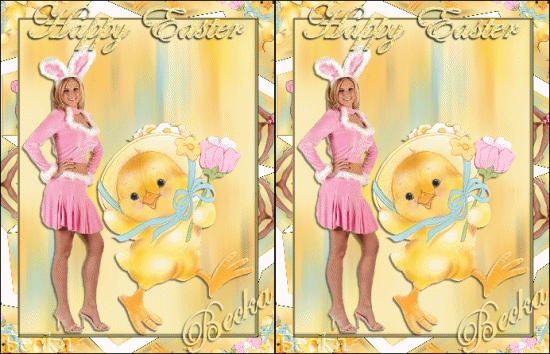
Notes: This tut was done in PSP 10 but should work as well in other versions. Some knowledge of, and experience with, PSP is required. A trial version of PSP can be downloaded from here. You are welcome to use my images, or use your own If any filters are used, please note that if you don't already have them installed that you will have to close PSP, Install, then start PSP again.
Supplies: Sexy-Bunny-Girl-Costume-2 Jcw_Easter_chick Your choice Animation Shop
Preparation: Easter chick Resize to 75% (285 x 300) Edit/Copy Edit/Paste As A New Image Close the original
Bunny image Duplicate 2x Minimize 1 Resize the other to 75% (125 x 370) Edit/Copy Edit/Paste As A New Image Close the original
Open a transparent image 300 x 400
Pick 2 colors from your tube: light and dark
Step 1: Edit/Copy you chick image -- the non-resized one Go to your 300 x 400 image (Working image) Selections/Select/All Edit/Paste Into Selection Selections/Select None Layers/New Raster Layer Layers/Arrange/Send To Bottom Flood fill with your light color
Step 2: Highlight your Raster 1 layer Adjust/Blur/Motion Blur Repeat blur Effects/Image Effects/Seamless Tiling Take your resized duck Edit/Copy Edit/Paste as a New Layer, move to the right side Effects/3D Effects/Drop shadow Take your Bunny Edit/Copy Edit/Paste as a New Layer move to the left side. Effects/3D Effects/Drop shadow
Step 3: Image/Add Borders/1 px/dark color Image/Add Borders/1 px/light color Selections/Select All Selections/Modify/Contract/2 px Selections/Invert Effects/3D Effects/Inner Bevel Selections/Select None
Step 4: Image/Add Borders/20 px/White Highlight this border Effects/Reflection Effects/Kaleidoscope Selections/Select All Selections/Modify/Contract/22 px Selections/Invert Effects/3D Effects/Drop Shadow Selections/Select All Selections/Modify/Contract/24 px Effects/3D Effects/Inner Bevel Selections/Select None Image/Add Borders/1 px/Black
Step 5: Add a caption Effects/3D Effects/Drop Shadow/same as before Selections/Select All Selections/Float Selections/Defloat Layers/Duplicate Close Copy of Promoted layer Make sure that Raster 1 is highlighted Adjust/Add - Remove Noise/Add Noise Highlight the Copy Raster 1 Layer Close off the Raster 1 layer Adjust/Add - Remove Noise/Add Noise Selections/Select None Add Name Layers/New Raster Layer Add watermark Close off your Copy of Raster 1 layer and highlight your Raster 1 layer Edit/Copy Merged Go to Animation Edit/Paste As A New Animation Back to PSP Close off your Raster 1 layer and highlight your Copy of Raster 1 layer Go back to Animation Edit/Paste/Past After Current Frame Check your animation by highlighting both frames and right clicking and choosing 'View Animation' If the speed of the animation is too slow or too fast: Right click on the image and select 'View Properties' and adjust the number until you get what you are looking for. Animation/Resize animation/Resize to 275/355