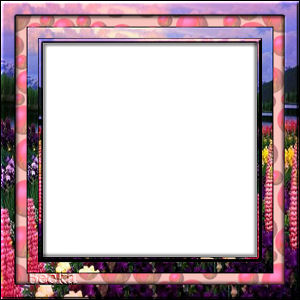
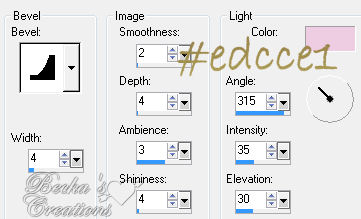
 Notes: Advanced Supplies: 3 Preparation: Open a 300 x 300 transparent image Step 1: With your transparent image maximized Image/Add Borders/1px/Black Image/Add Borders/5 px white Highlight your white border Highlight your Raster 1 layer Layers/Arrange/Send to Bottom Effects/3d Effects/Inner Bevel
Step 2: Image/Add Borders 15 px White
Step 3: Image/Add Borders 15 px #f9c2bd
Step 4:
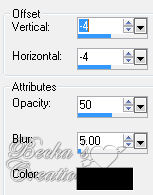
Image/Add Borders/20 px/White Edit/Copy your floral tube Edit/Paste Into Selection onto your main image Adjust/Sharpness/Sharpen Image/Mirror Effects/3d Effects/Drop Shadow 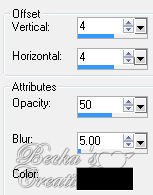 Color: Black ( or your choice) Repeat - Except change the Vertical/Horizontal to -4 Effects/3D Effects/Inner Bevel 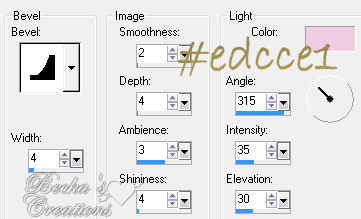 Deselect Image/Add Borders/1px/Black Take your magic wand Select the middle of the frame Delete Layers/Add New Raster Layer Add Watermark Layers/Merge/Merge Visible
Voila!! ®©Create With Becka   |
|



Make a Free Website with Yola.
