 Notes: This tut was done in PSP 10 but should work as well in other versions.
Some knowledge of, and experience with, PSP is required. A trial version of PSP can be downloaded from here. You are welcome to use my images, or use your own If any filters are used, please note that if you don't already have them installed that you will have to close PSP, Install, then start PSP again. Intermediate Supplies: CherSwitz~bm_angel_with_redbird_eunice Filters Unlimited Preparation: Take you angel, Edit/Copy
Step 1: Take 1 of the angels
Effects/plugins/I.C.Net Software/Filters Unlimited
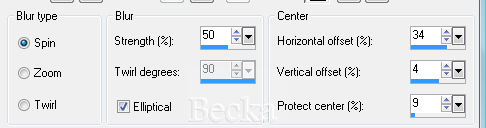
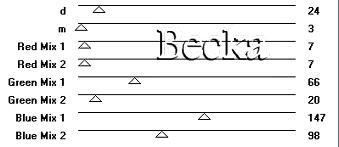
Distortion Filters/Explosion/Intensity 115 Effects/Plugins/Alfs Power Toys/Split Distortion/32 Effects/Image Effects/Seamless Tile/Default Effects/Plugins/Andrews Filter 3/Reflection Pool/131 Effects/Andrews Filter 30/Flowers
Repeat
Layers/New Raster Layer Flood fill with your other color Lower the opacity to: 40 Layers/New Raster Layer Flood fill with White Lower the opacity to: 40
Step 2: Edit/Copy your angel
Edit/Paste as a New Layer Image/Resize/Resize all layers - UNchecked Resize to 85% Layers/Merge/Merge Visible
Step 3: Selections/Select All
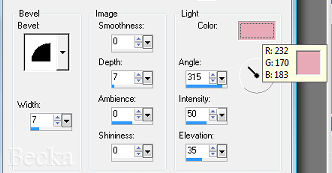
Selections/Modify/Contract/10 px Selections/Invert Effects/3D Effects/Inner Bevel
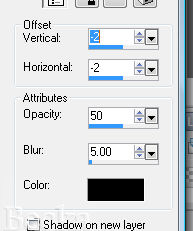
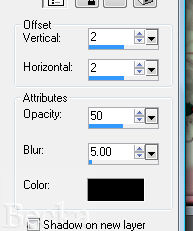
Effects/3D Effects/Drop Shadow
Selections/Select All
Selections/Modify/Contract/12 px Selections/Invert Edit/Copy Edit/Paste as a New Image Minimize 'Frame' Selections/Select None
Step 4: Image/Add Borders/1 px/Black
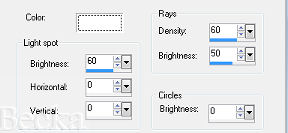
Image/Add Borders/20 px/White Highlight this border Effects/Plugins/I.C.Net Software/Filters Unlimited/Buttons & Frames/Kaleidoscope Frame (Rectangular)/Default Effects/Plugins/VM Natural/Splash!/Default Selections/Select None Image/Add Borders/12 px/ White Maximize your frame Edit/Copy Edit/Paste Into Selection Deselect Image/Add Borders/1 px/Black Effects/Illumination Effects/Sunburst
Step 4: Add your name - Inner Bevel, Drop Shadow, your choice
Add title Layers/New Raster Layer Add Watermark Layer/Merge/Merge Visible Resize to 80%
Viola!

 |
|

Make a Free Website with Yola.
