 Notes:
This tut was done in PSP 10 but should work as well in other versions. Beginner Supplies: Image5 (Panda Image) Your choice as well as settings
Open a 600 x 500 Transparent image
Step 1: Open an image 600 x 500
Take the tube and re-size it to 50% Edit/Copy Edit/Paste As A New Selection Selections/Select None Layers/Duplicate Image/Mirror Place the pandas in the middle and have the cubs almost touching
Layers/Merge/Merge visible
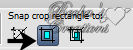
Step 2: Click on your Crop Tool
Double click
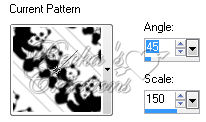
Layers/New Raster Layer Flood fill with White Layers/Arrange/Send to Bottom Layers/Merge/Merge Visible Edit/Copy this image Find this image in your Patterns
Image/Add Borders/1px/Black
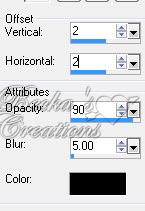
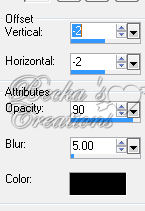
Image/Add Borders/20px/White Selections/Select All Selections/Modify/Contract/20px Selections/Invert Flood fill with this pattern Effects/3D Effects/Drop Shadow/Same 2 as before
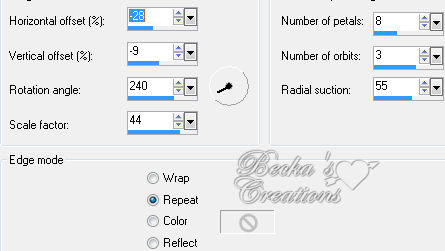
Step 3: Effects/Reflection Effects/Kaleidoscope
Deselect
Image/Add Borders/1px/Black Image/Add Borders/5 px/White Image/Add Borders/5 px/Black Image/Add Borders/1px/White Add a Caption Add Name Effects/3D Effects/Drop Shadow/Same as before Layers/New Raster Layer Add Watermark Your Done!! 6-15-09   |
|


Make a Free Website with Yola.
