Notes:
This tut was done in PSP 10 but should work as well in other versions.
Some knowledge of, and experience with, PSP is required.
A trial version of PSP can be downloaded from here.
You are welcome to use my images, or use your own
If any filters are used, please note that if you don't already have them installed that you will have to close PSP, Install, then start PSP again.
If this tutorial is in any way confusing or if you have any suggestions, please free to contact me
Supplies:
Image
Animation
PSP
Preparation:
Take an image that you would like to have glitter as a background
Make sure that animation is open
Make sure that PSP is open
Step 1:
Take the glitter and drag it into animation - it will open as many frames as it took to make the animation
Take your image and drag it into animation - if it says that its not supported, then you will have to save it in .psp format
Minimize your image
Step 2:
Glitter
Edit/Select All
Re-size as needed.. I resized this to 300 on the longest side, but that can vary depending on how big or small you need it
Take your image and re-size it to be smaller than the glitter, (I re-sized mine to 200)
Step 3:
On both the image and glitter Frames
Edit/Select All
Edit/Copy - the image
Edit/Paste Into Selected Frame - Glitter
View/Animation
Step 4:
To add your watermark onto the glittered image
Go to PSP
Open a transparent image
Add your watermark
Crop around your watermark
Edit/Copy
Step 5:
Go to animation
Edit/Paste as a new Animation
Edit/Re-Size to 25% - or what looks good to you
Edit/Select All - working image
Edit/Copy - your watermark
Edit/Paste/Into selected frames
View/Animation
Animation/Frame Properties
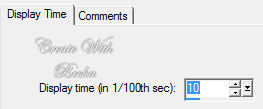
Adjust as desired
File/Save As
Next
Next
Next
Finish
®©CreateWithBecka
2-13-11


