 Notes: Supplies
JgAGift_vsc Your choice as well as the settings
Preparation:
Take your tube
Duplicate 2x
Close the original
Minimize 1 for now
Pick 2 colors from your image
Step 1: Working with your tube
Layers/New Raster Layer
Flood Fill with White
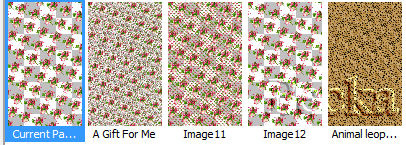
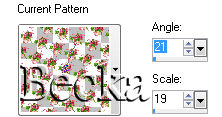
Go to your materials Palette and click on the Pattern Tab
Click on your image
Layers/New Raster Layer
Flood fill with this pattern
Highlight your pattern Layer and lower the opacity to: 65
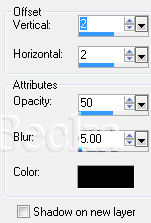
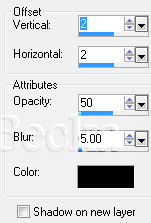
Highlight your Tube layer Effects/3D Effects/Drop Shadow
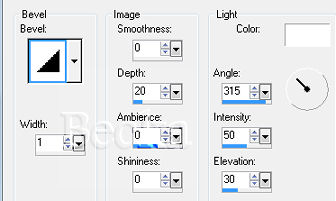
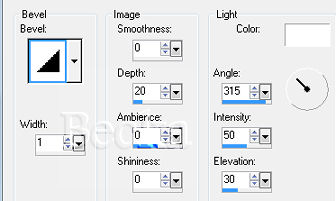
Effects/3D Effects/Inner Bevel
Image/Add Borders/1 px/Black
Step 2:
Image/Add Borders/10 px/White
Highlight this border
Flood fill with your pattern Effects/3D Effects/Drop Shadow 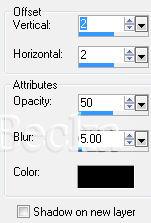 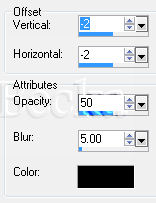 Deselect
Step 3:
Image/Add Borders/1 px/Black Selections/Selections All Effects/3D Effects/Inner Bevel -- same as before Deselect Image/Add Borders 20 px White Step 4:
Maximize your minimized layer
Effects/Image Effects/Seamless Tiling/Default Go to your materials Palette and click on Pattern 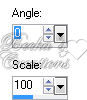 Highlight this border Flood Fill your white border with your pattern Effects/3D Effects/Drop Shadow - both drop shadows Deselect Step 5:
Image/Add Borders/1 px Black Image/Add Borders/10 px/White Highlight this border Click on your materials palette and select pattern. 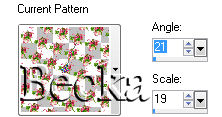 Effects/3D Effects/Drop Shadow - both drop shadows Deselect
Step 6:
Image/Add Borders/1 px/Black
Selections/Selections All Selections/Modify/Contract 1 px Selections/Invert Effects/3D Effects/Drop Shadow - both drop shadows Deselect
Step 7:
Layers/New Raster Layer
Add your watermark
Add a Caption
Add your Name
Effects/3D Effects/Drop Shadow - to Caption and Name
 Effects/3D Effects/Inner Bevel
 Layers/Merge/Merge Visible
®©CreateWithBecka
12-14-09 
 |
|

Make a Free Website with Yola.
