Notes:
This tut was done in PSP 10 but should work as well in other versions.
Some knowledge of, and experience with, PSP is required.
You are welcome to use my images, or use your own
If any filters are used, please note that if you don't already have them installed that you will have to close PSP, Install, then start PSP again.
Supplies:
NS_63_0209
Ntdarkne
Norah_mask_Abstract75*
Preparation:
Edit/Copy your images
Edit/Paste as new Images
Step 1:
Edit/Copy your castle onto your mask image
Image/Add Borders/2 px/White
Image/Add Borders/2 px/Black
Image/Add Borders/20 px/Any Color (I used #e8aa83)
Step 2:
Highlight this border
Effects/Reflection Effects/Kaleidoscope
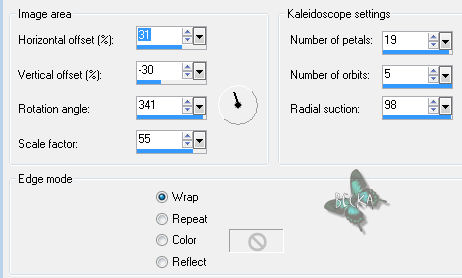
Selections/Select None
Step 3:
Image/Add Borders/2 px/White
Image/Add Borders/2 px/Black
Image/Add Borders/2 px/White
Step 4:
Edit/Copy the ghost, woman
Edit/Paste onto your image
Image/Re-Size to 450
Move the image to either the right or the left side
Effects/3D Effects/Drop Shadow

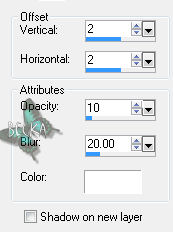
Step 5:
Layers/New Raster Layer
Add Name
Effects/3D Effects/Drop Shadow
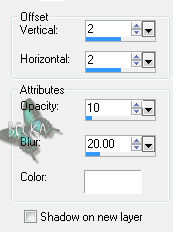
Layers/New Raster Layer
Add Watermark
Layers/New Raster Layer -- Optional
Add a Caption -- Optional
Effects/3D Effects/Drop Shadow
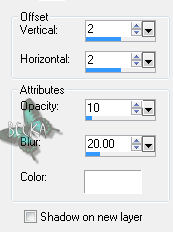
Layers/Merge/Merge Visible
Re-Size to 500 on the longest side - if needed
®©CreateWithBecka
10-23-11


